Learning how to follow a WhatsApp channel takes seconds, it's free, and it's private: nobody sees your number just because you follow. Open the Updates tab, go into the channel directory, find the one you want, and tap Follow. If someone sends you a link, tap it and hit Follow in the preview. Notifications are muted by default, and you can unfollow at any time without anyone knowing.
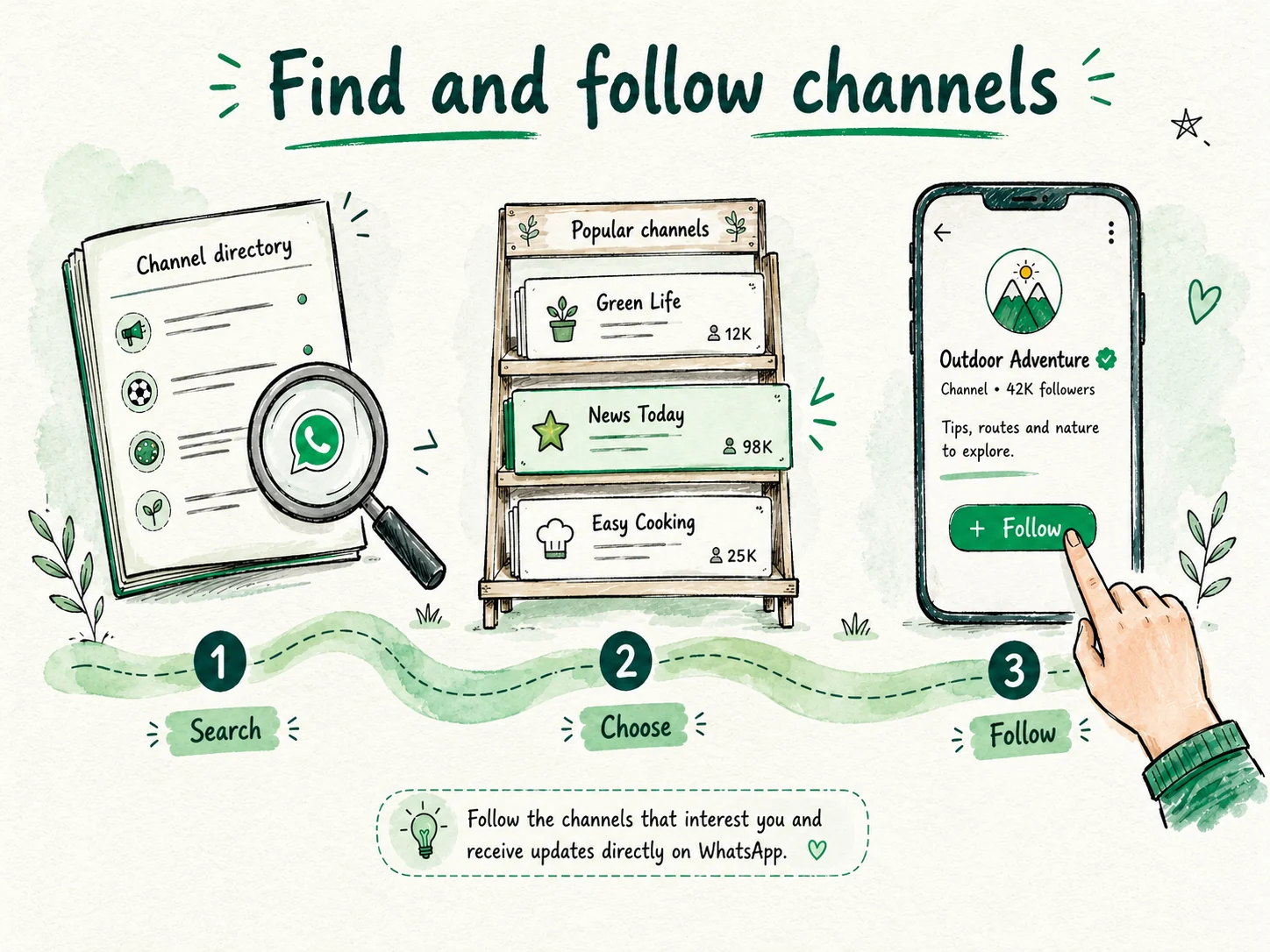
Following a channel comes down to three steps: search, pick, and tap Follow.
How to follow a WhatsApp channel step by step
To follow a WhatsApp channel, open the Updates tab, find the channel you want, and tap Follow. It's free. All you do is open the channel directory, search for the one that interests you, and confirm. You can also jump straight in through a link someone shares with you, no hunting required.
On Android, here's how:
That's it. Its posts will start showing up in your Updates tab.
On iPhone and on your computer the process is nearly identical (you'll find the details for each platform further down). And if someone hands you an invite link, it's even faster: tapping it opens the channel preview, and you just hit Follow. We cover that in its own section.
One thing worth knowing so you can relax: following is private. Your phone number and your profile stay hidden from the admin and from other followers, so nobody knows which channels you follow. If you're still fuzzy on what this feature actually is, brush up on what a WhatsApp channel is before you jump in.
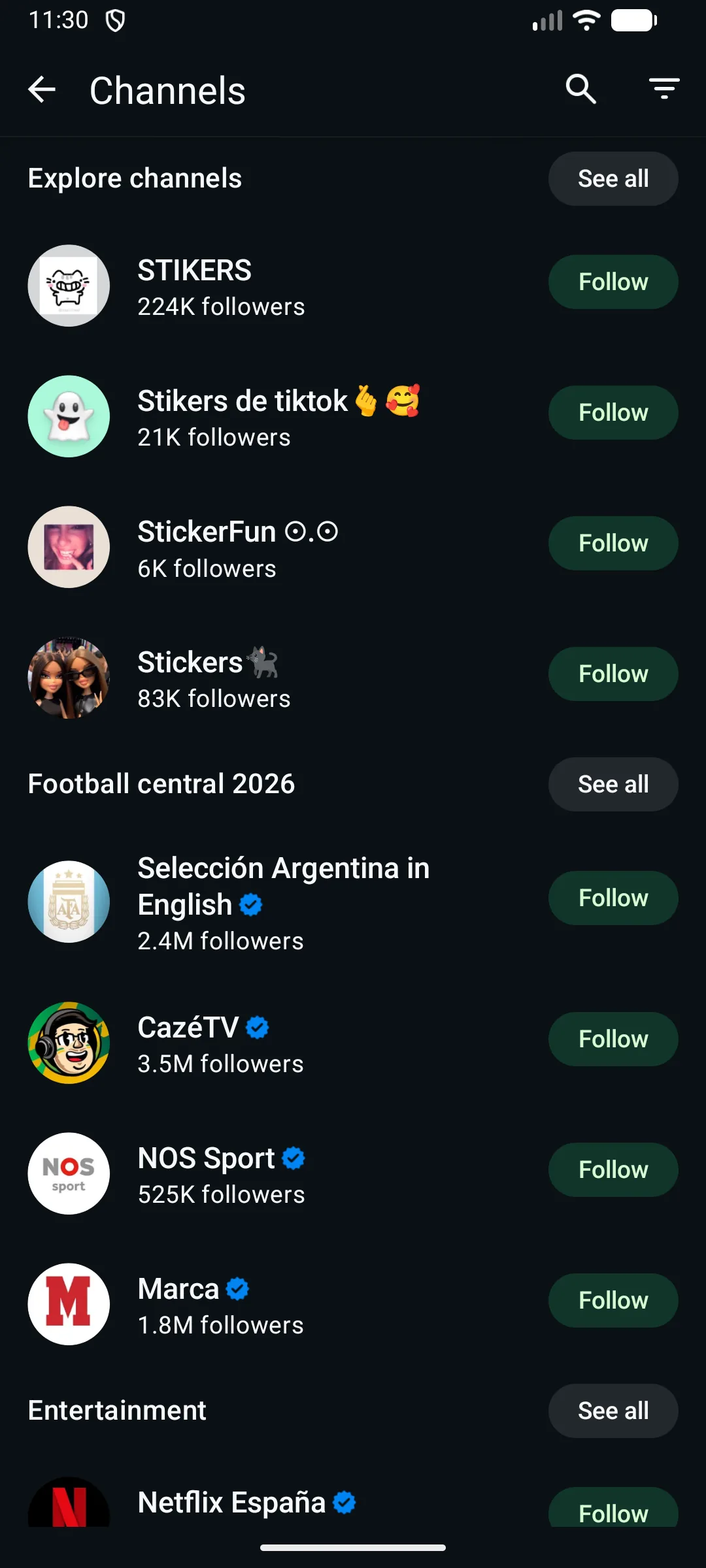
The directory lets you search by name, filter by country or category, and follow with one tap.
Open WhatsApp and tap the Updates tab.
Scroll down to the Channels section.
Tap Find channels (or the + icon next to "Channels") to open the directory.
Find a channel using the search icon, by typing its name or topic, or use the filters (Most active, Popular, New, and Country).
Tap the + button next to the channel to follow it right away, or tap its name to preview it and hit Follow (top right).
To find WhatsApp channels, use the directory built into the app: open the Updates tab, go to the Channels section, and tap "Find channels." From there you can search by name with the search icon or browse the list using the filters. You don't need to leave WhatsApp or install anything.
You have two ways to discover channels. The first is the search box with filters. When you open the directory, you'll see tabs that sort what appears: All, Most active, Popular, New, and Country. By default it shows channels from your country and language, so what you see is already tuned for you. If you want to peek at what people follow somewhere else, change the Country filter and the directory refreshes with channels from that region.
The second way is searching for a specific name. If you already know who you want to follow (a newspaper, your team, a brand), tap the search icon at the top and type the name. This is the quickest route when you don't feel like browsing and just want to reach one particular channel.
A tip before you start: think about which topic you genuinely care about (news, your city, sports, a store) and lean on the filters so you don't get lost in everything that's out there. And watch out for fake channels. Some accounts impersonate well-known brands to trick people. Check the name carefully, and be suspicious of any channel that promises prizes or asks for your personal information.
You can also reach a channel through an invite link someone shares with you, without touching the directory at all. We'll walk through that step by step below.
How to follow a channel with an invite link
If someone sends you a channel's link, following is as easy as tapping it: the channel preview opens in WhatsApp, and all you do is hit Follow. There's no need to search the directory or type the name by hand.
These links travel just about everywhere. You get them in a chat, by email, on social media, or you see them posted on a website, and they also show up as QR codes you simply scan. In every case the destination is the same: tap the link or scan the QR code, and WhatsApp takes you to the channel preview.
That preview is handy because you can see the latest posts before you decide. You get a feel for what the channel is about, how often it posts, and whether it's actually for you. If you like what you see, tap Follow and its updates start landing in your Updates tab. If not, you back out without following, and that's the end of it.
Now the important part: since anyone can share a link, don't trust them all equally. Be wary of links that promise prizes, giveaways, or gifts, or that ask for personal details, passwords, or payments to "get in." Before you follow, confirm the channel is who it claims to be. Look at the name carefully and steer clear of knockoffs of well-known brands. A legitimate channel will never ask you for your password.
How to follow channels on desktop (WhatsApp Web)
Yes, you can search for and follow channels from WhatsApp Web and the desktop app, and the ones you follow sync to your phone. You don't have to do everything from your phone: if you work in front of a computer, you can manage your channels without leaving the keyboard.
The process is almost the same as on mobile. Here's how:
The nice thing is that everything is connected: follow a channel on your computer and, moments later, you'll see it show up in Updates on your phone. It works the other way around too, so it doesn't matter where you start. From the desktop you can also read posts and react with emojis, just like on your phone.
Click the Channels icon in the left sidebar.
Open the directory that appears when you do.
Search by name or browse by category using the available filters (Most active, Popular, New, or Country).
Click Follow next to the channel you want.
Is following a WhatsApp channel free?
Yes, following a WhatsApp channel is completely free. The only thing you spend is your mobile data or Wi-Fi when the posts come in. There's no fee for tapping "Follow."
You don't pay to follow a channel or to read what it posts, and it doesn't matter how many you follow: you can follow one or twenty without being charged a cent. It's the same whether it's a news outlet, a club, a store, or a creator. The public part of the channel is open to anyone who wants to see it.
To be straight with you, some creators do offer an optional paid extra, like a subscription to exclusive content. It's voluntary and kept separate: following the channel and seeing its free posts still costs you nothing. And if something is paid, it's clearly shown before you decide, so you'll never be charged out of the blue.
So getting in, following, and staying up to date won't cost you money. Paying, when it exists at all, is a choice you make, not a requirement for following the channel.
Is it safe? Will they see my number?
Following a channel is private: your phone number and your profile stay hidden from the admin and from other followers, and nobody can see which channels you follow. When you tap "Follow," you're not handing over your details or showing up on any visible list.
There's one detail worth understanding clearly. An admin would only see your number if they'd already saved you as a contact beforehand. Following their channel doesn't reveal it. In other words, following creates no new link between your number and them. Your actions inside the channel don't give you away either: reacting with an emoji or voting in a poll doesn't reveal who you are, and followers can't see one another. You can unfollow whenever you want and the admin won't know, because they never had access to your number in the first place.
That said, it's only fair to cover the other side. Channels don't have end-to-end encryption the way private chats do. They're a public broadcast, built so anyone can follow and read them. That means whatever gets posted in a channel can be forwarded to other chats or end up seen outside WhatsApp, so don't assume anything that shows up there is confidential.
There are also fake and scam channels that impersonate well-known brands or people. Before you trust one, check the name and be suspicious of any that promise prizes, giveaways, or easy money, or that ask for your personal information, passwords, or a payment. Don't tap odd links inside a channel or follow instructions to "verify" your account. If something sounds too good to be true, it usually is. Following a channel is safe and private. You just need to use the same common sense you'd apply to any message from a stranger.
How to mute a channel and manage notifications
Channel notifications are muted by default, so a channel won't make your phone buzz unless you turn its alerts on with the bell icon. You can follow as many channels as you like without your screen filling up with alerts: you only get notified about the ones you specifically ask for.
To turn a channel's alerts on or off, open the channel and tap the bell icon at the top. When the bell shows a line through it, that channel is muted and won't notify you. Tap it and you switch its notifications on and start receiving them. It's a toggle: tap again and you mute it once more whenever you want.
You'll also find these options on the channel's info screen, the one that opens when you tap its name. From there you can adjust the alerts the same way you would with the bell.
A practical tip: if you follow a very active channel and don't want it interrupting you, leave it muted and check it when you open the Updates tab yourself. That way you read its posts at your own pace, with no notifications getting in the way.
How to search for messages inside a channel
Yes, you can search for posts inside a channel you follow: open the channel, go to its info screen (tap its name at the top), and use the search icon to look by keyword. It's the fast way to pull up a link, a date, or a specific announcement without scrolling through the whole history.
Search inside a channel came to Android phones first and iPhone afterward, so if you don't see it, check that your app is up to date. It works simply: you type a word and move through the matching results. When what you're after is older, you can also jump straight to a date in the history and read from there.
The feature is there, though the exact label or position of the button may differ depending on your version. Look for it by what it does (the search icon inside the channel's info).
Careful not to mix up two things. Searching inside a channel is done with the search icon on its info screen. Searching for new channels to follow is something else: for that, use the search icon in the directory, over in the Updates tab.
How to unfollow a WhatsApp channel
You can unfollow a channel whenever you want. The moment you do, it stops showing up in your Updates tab, and the admin doesn't find out, because they never saw your phone number. It's a private, reversible decision.
To do it from the channel itself:
There's also a shortcut from the list: press and hold the channel in Updates and choose the unfollow option from the menu that appears.
Don't confuse unfollowing with muting. Muting only takes away the alerts: you stay subscribed and see the posts each time you open the channel. Unfollowing removes it from your Updates entirely. If you change your mind later, you can follow it again without any trouble: just find it again in the directory or open its link and tap Follow once more.
Open the channel in the Updates tab.
Tap its name at the top to go into the info screen.
Tap the option to unfollow the channel.
Which WhatsApp channels to follow (ideas)
The channels most worth following are the ones about topics you already care about (your news outlets, your team, your city, brands you like) and the official channels of people or organizations you follow on other networks. Start there and you'll avoid clogging your Updates tab with things you'll never look at.
Think in categories, not one-off names. These tend to work well:
To discover options, use the directory inside the app: it has a search box and filters by category and country, so you can explore by topic without leaving WhatsApp.
A quality tip: favor official channels over imitations. And don't overthink it. Follow a few to start and add more as you go. It's easier to expand than to clean out an overloaded Updates tab.
Local news and media: your regional newspaper, the radio or TV station you already listen to, so you have the headlines on your phone.
Sports and your team: clubs, leagues, or sports desks with scores and game-day alerts.
Your city: city hall, public transit, or municipal services that post road closures, construction, or useful notices.
Stores and brands you follow: deals, new arrivals, and launches from shops you already like.
Creators and artists: musicians, explainers, or accounts you follow on Instagram or YouTube that also have a channel.
For fun: recipes, comedy, movies, or any hobby to switch off for a bit.
Frequently asked questions about following a WhatsApp channel
Does the admin know I follow their channel?
No, the admin doesn't know who you are. They only see the total number of followers, never your identity or your phone number. The one exception is if they'd already saved you as a contact beforehand. In that case they recognize you because of that, not because you followed the channel.
Can I follow a channel without my contacts seeing it?
Yes, which channels you follow is private information. Nobody in your contacts can see the list of channels you follow. Reacting with an emoji or voting in a poll doesn't reveal who you are either, so you can follow whatever you like with peace of mind.
How many channels can I follow?
You can follow as many as you want, and you don't have to pay for it. Following is free, both the free content and the act of following itself. A practical tip: start with a few so you don't overload the Updates tab, and add more as you figure out which ones are worth it.
Can I follow channels from my computer?
Yes, you can search for and follow channels from WhatsApp Web and the desktop app. You'll find the Channels icon in the sidebar, with its search box and filters. The channels you follow sync between your computer and your phone, so they appear on both.
How do I know if a channel is the official one and not an imitation?
Check the channel's name carefully before you follow. For well-known brands and public figures, look for the verification badge. Be suspicious of channels that promise prizes or giveaways, or that ask for personal details, passwords, or payments: those are classic signs of impersonation. If something feels off, don't follow and don't hand over anything.
If I unfollow a channel, does the admin find out?
No, the admin doesn't find out you unfollowed. Since they never saw your number or your profile, they can't tell you've left either. You can unfollow whenever you want and follow again later without any problem.
Left wanting one of your own?
Follow the guide on how to create a WhatsApp channel.