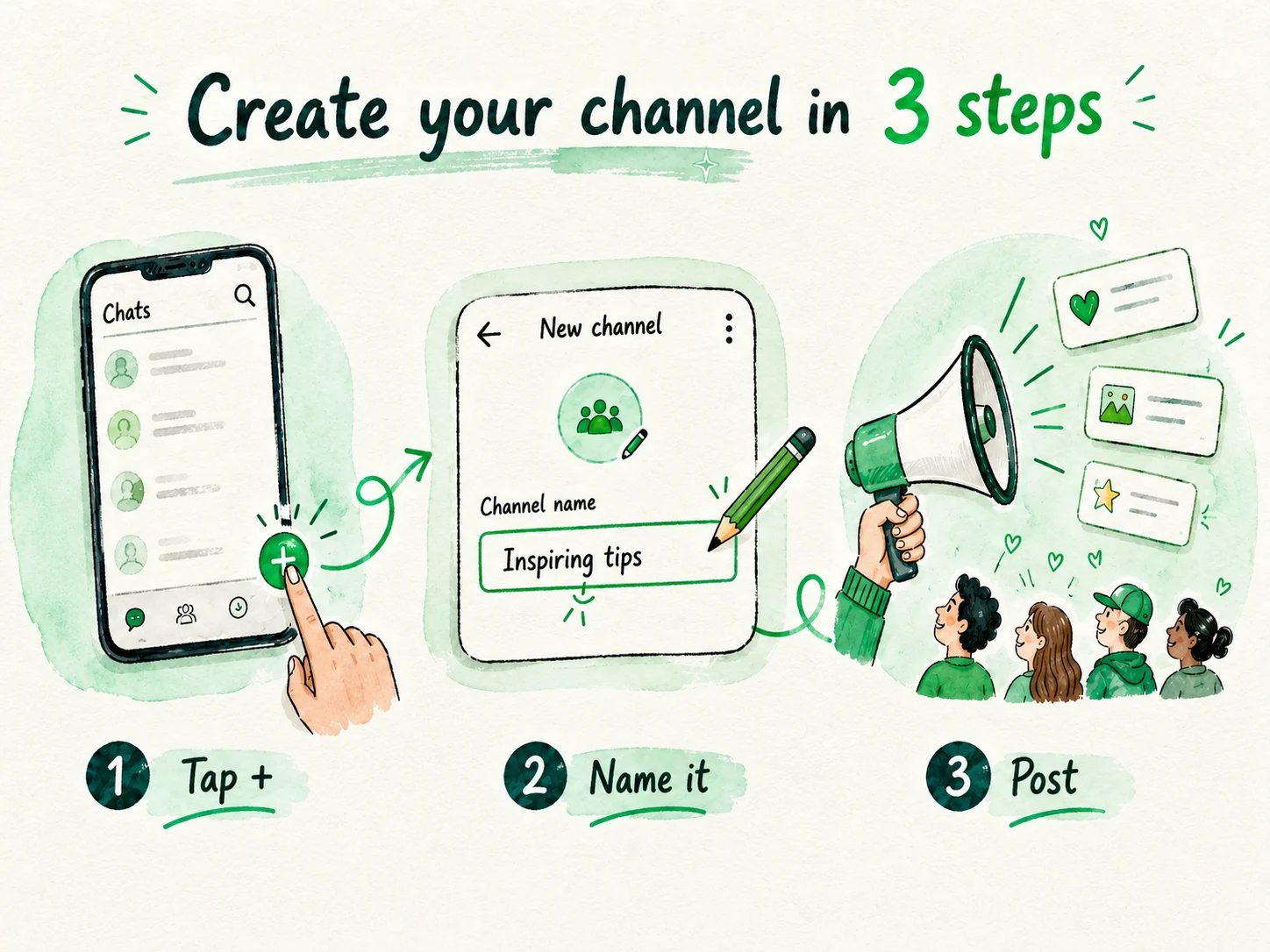
To create a WhatsApp Channel, open the Updates tab, tap the menu, choose Create channel, and give it a name, the only required field. The description and photo are optional and can be changed later. It's free, anyone can do it, and it works on Android, iPhone, and desktop. A channel has no follower limit, unlike a group, which holds at most 1,024 members.
Published July 2, 2026. Updated October 8, 2026.
Creating a channel comes down to three steps: tap +, give it a name, and start posting.
How to create a WhatsApp Channel step by step
Creating a WhatsApp Channel is free, and anyone can do it right from the app with no permissions or prior verification. You set it up from the Updates tab in a couple of minutes, and the only required field is the name. The description and photo are optional, and you can change them whenever you like.
Here are the steps on Android:
Using an iPhone, a computer, or WhatsApp Business? The flow is almost identical, with a few small changes to menus and buttons. You'll find the platform-by-platform details below, along with what changes in each one.
One tip before you hit Create: think about the name. It's the first thing people see and how they'll find you when they search, so give it a minute. You can change it later if you regret it, but a good name from the start saves confusion and helps your channel grow. If you're still not sure what this is and what it's for, take a look at what a WhatsApp Channel is before you go on.
Here's a detail that puts a lot of people at ease: your channel name is public, but your phone number stays hidden from the people who follow you.
This is where you choose the name and, if you want, add a description and photo.
Open the Updates tab and tap the three-dot menu (top right).
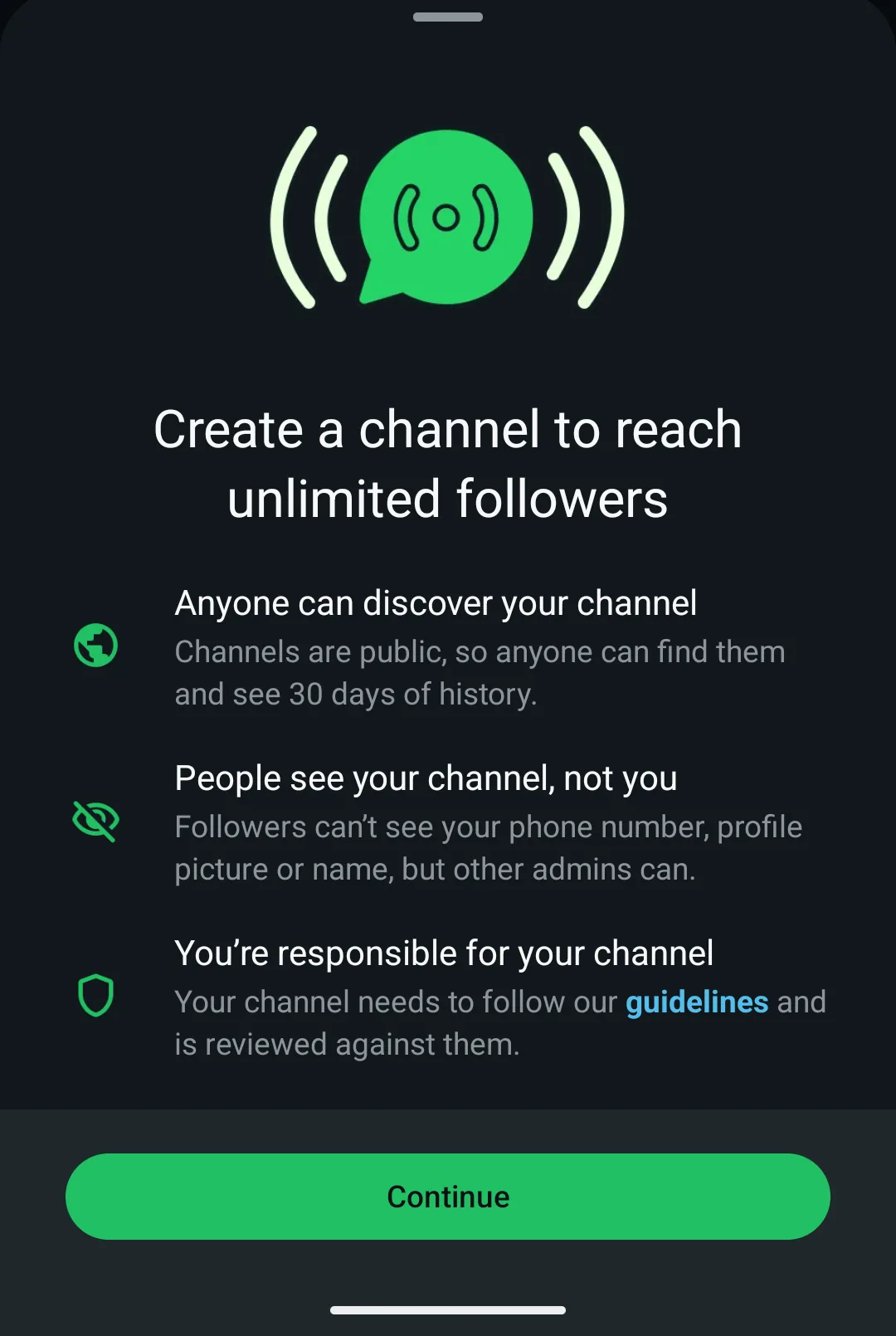
Tap Create channel, then Continue.
Type the channel name. This is the only required field. If you want, add a description and tap the camera icon to set a photo.
Tap Create channel.
Invite your contacts: select them and confirm with the check mark, or tap Skip if you'd rather invite people later.
Add a message to the invite (optional).
Tap Send, and that's it. You now have your channel.
Creating a WhatsApp Channel has almost no requirements: all you need is the app installed and up to date. Anyone can do it, for free, without being a well-known brand and without being verified. You don't need anything unusual, and you don't have to ask anyone for permission.
Here's everything it takes:
You've got it easy: if you already use WhatsApp on your phone, you already meet almost everything. With the app up to date and the Updates tab handy, you can start creating your channel right now. Before you begin, it might help to be clear on what a WhatsApp Channel is and how it's different from a group.
An updated app. WhatsApp recommends running the latest version so the option to create channels shows up. If you don't see it, update from your phone's app store.
Any account works. Your regular personal account or a WhatsApp Business account will do, with the same flow and the same features. You don't have to open a separate account.
No prior verification. You don't need the verified badge to create your channel or to start posting. Verification is a different thing, and it comes much later, if at all.
It's free. Creating and running a channel doesn't cost anything.
Available almost everywhere. Channels have been live in more than 150 countries since September 2023. A channel can be limited in some countries because of local laws, but in most places they work normally.
Minimum age. There's no age requirement specific to channels; WhatsApp's general minimum applies, which is 13 (or older in some countries).
On iPhone you create a channel the same way as on Android: from the Updates tab, tapping the menu and then Create channel, with only two tiny differences in the interface. The rest of the process (setting the name, an optional description, and a photo) is identical, so follow the detailed steps in the section above.
Here are the two things that change on iPhone:
Apart from those two details, everything works the same as on Android. For the full walkthrough, head back to the main section with the steps.
The menu icon is three horizontal dots (on Android they're vertical). You'll find it in the corner of the Updates tab. Tap it to bring up the Create channel option.
When you invite your contacts, the button is Next, not the check-mark icon you see on Android. Select who you want to notify and tap Next. If you'd rather leave it for later, tap Skip: you can invite people whenever you want.
How to create a WhatsApp Channel on desktop
Yes, you can create a WhatsApp Channel from your computer, both in WhatsApp Web and in the desktop app (as of 2026). Plenty of older guides say you can't, but they're out of date: today the flow works just like it does on your phone.
Here are the steps in WhatsApp Web:
There's also a desktop app for Mac and Windows with an equivalent flow. From the computer you manage everything the same way you would on your phone: you post messages, check your metrics, and add or remove admins.
The most common route is still your phone, which is where most people open their channel. Even so, the computer comes in handy when you're posting long text, pasting links comfortably, or uploading content you already have on your PC. Typing with a full keyboard is a nice change.
Click the channels icon.
Click the add button (the + sign inside a circle).
Select Create channel, then Continue.
Type the channel name. If you want, add a description and an icon; both are optional, and you can change them later.
Click Create channel.
Click Send to finish.
How to choose your channel's name and description
Your name is what people see and type when they search for you in the channels directory, so it should be clear and easy to find; the description is that one line that explains what the channel is about and helps people decide whether you're worth following. The two appear together in search results, and they're the first thing someone who doesn't know you will judge.
For the name, go with clear over clever. A pun will make you smile, but nobody types it into search. Make it say what you offer or include your brand or your topic, make it easy to remember and to type, and steer clear of names so generic they get lost among a thousand others just like them. Think about how someone who doesn't know you exist would search for you.
A few structures that work:
The description is your short sales pitch. In a line or two, say what you post and how often: "Store deals and news, two or three times a week" says more than any vague slogan. Anyone who reads it instantly knows what they'll get if they tap follow, and that's exactly what makes them do it.
Don't stress about nailing it on the first try. You can change the channel's name, description, and image whenever you want from the channel settings, so start with something sensible and adjust it once you see how your audience responds.
López Shoes Deals (what you offer + your business)
Villa del Río News (topic + place)
Marta's Quick Recipes (subject + your name)
North Athletic Club · Alerts (brand + what it's for)
Can you create a private WhatsApp Channel?
No, there's no private or closed WhatsApp Channel the way a group is: channels are public by design, and anyone can follow and see them. What you can control is who discovers you, which is a very different thing from being private.
As an admin, your real lever is discovery. Start with the search directory: WhatsApp lets you decide whether your channel shows up when people search for channels. If you take it out of the directory, you stop appearing in those searches, and only people who have your invite link can reach you. Watch out here, because this is the most common misunderstanding: hiding a channel from the directory does not make it private. The link still works for anyone who receives it, and that link can be forwarded.
There's also good news for your followers: following a channel doesn't reveal their phone number. You don't see the number of the people who follow you, and they don't see your personal number.
Even so, there's an important limit you need to be clear on. Channels don't use end-to-end encryption like regular chats; they're public broadcast. Treat every post as something that can slip out of your control and end up forwarded anywhere. If you have to share something truly sensitive or confidential, a channel isn't the place.
You may have read that WhatsApp is working on encrypted channels for limited audiences, meant for groups like NGOs or healthcare. For now that's just an idea being explored, not a feature you can turn on today. With what's available, the most you can do is take your channel out of the directory so people reach it by link only.
How many channels can you create, and how many admins can one have?
You can manage several channels from a single account and invite up to 16 admins to help you run them. You don't need another account or another number to have more than one.
WhatsApp doesn't publish an official maximum number of channels per account, so don't trust the figures floating around out there. What we do know is that you can create more than one. That said, in practice it usually makes sense to focus on a single, well-tended channel: trying to post steadily across several at once tends to end in neglect. If you run a business and a nonprofit, for example, that's a case where splitting them makes sense.
As for managing it, you can add up to 16 admins besides yourself, the owner. Each admin can post and edit the channel profile (name, description, and photo), so share the work with people you trust. One important privacy note: admins can see each other's phone numbers, unlike followers, who never see them. You, as the original owner, keep control of the channel.
A practical detail for your day-to-day: you can pin up to 2 channels at the top of your list, the ones you use or post to most, so they're always within reach.
How to get the verification badge on your channel
The verification badge is granted by Meta: you can't buy it or casually request it, and it's awarded for notability and authenticity, not for follower count. There's no button to "request the checkmark" on a normal channel.
Meta reserves the badge for channels belonging to well-known people or brands, and it usually leans on coverage from independent news outlets. We're talking about third-party articles and reporting, not your own press releases or paid content. For an ordinary channel, verification through this route isn't open to the general public yet, so even if you have a lot of followers, the option may not appear.
There's an important nuance. There's also a paid route, Meta Verified, which is being rolled out mainly for WhatsApp Business accounts. That's an identity-based review, different from the notability badge we just described. On top of that, Meta is unifying the badge color (shifting from green toward blue) depending on the region and the pace of the rollout, so what you see may vary from one place to another.
To be clear: you don't need verification to create your channel or to grow it. It's an extra layer of trust meant for brands that are already recognized. Focus on posting well and earning followers; the rest comes on its own when the time is right, if it ever does.
How to share your channel and get its link
Every channel has its own invite link that you can copy and paste wherever you want: social media, your website, chats, groups, or email. When someone opens it, they go straight to your channel and follow it with a single tap, without searching for you or typing anything.
Sharing it is simple. Go into the channel's info or settings, and there you'll find the option to copy the link or share it through other apps. On top of that, right when you create the channel, WhatsApp offers to invite your contacts: select them and send the invite, or tap Skip if you'd rather do it later. You can also forward any channel post to a chat; it travels with the link included, so whoever gets it can follow you from there.
Where should you put that link to gain followers? Three spots that work well:
Spread the link in as many places as you can and let people come to you on their own. As we saw above, the link works even if your channel doesn't show up in the directory, so it's your way of controlling who arrives without depending on people finding you through search.
In your Instagram or TikTok bio, where your audience already looks for you.
In your website footer or on your contact page, always visible.
In your email signature and in other groups where you're allowed to share it.
What to post on your brand-new channel
The moment you create the channel, post a first welcome message that explains what it's about and how often you'll post. That way, anyone who arrives knows what to expect from the very first minute and can decide for good reason whether they're interested in following you. It's your introduction.
First things first, remember what you can post in a channel: text, photos, videos, stickers, and polls. Your followers can't reply or write to you; they can only react with emojis or vote in your polls. Everything you share goes one way, from you to them, so the weight of the content rests entirely on your side.
With that clear, here are a few tips that work:
And a truth worth saying plainly: creating the channel is the easy part. The hard part comes afterward, when you have to keep the pace week after week and get people to follow you and stick around. An abandoned channel with two posts from months ago is no use to anyone, least of all you.
Growing a channel from scratch is a whole other world, with its own tactics. But that comes once you already have the basics down and you're posting with a plan. First, build the habit.
As for how many followers to expect: most channels are small, and a new one with a few dozen followers is perfectly normal. The real median of the channels in our directory is in the WhatsApp channel statistics, which update automatically.
Start with the welcome. Introduce yourself, say what the channel is about, and set a realistic expectation for how often you'll post.
Use polls to get people involved. They're the only interactive thing your followers have, so lean on them so it doesn't turn into a monologue.
Keep a sustainable pace. One good post a week beats ten at once followed by silence. Consistency matters more than volume.
Quality over quantity. Posting for the sake of posting overwhelms people, and they leave as fast as they arrived.
Frequently asked questions about creating a WhatsApp Channel
Can you create a WhatsApp Channel with a business account (WhatsApp Business)?
Yes, WhatsApp Business creates channels with the same flow as the regular app: you go into Updates, open the menu, and tap Create channel. You get the same features to post and manage. The only real difference is Meta Verified, the paid verification that's being rolled out for Business accounts.
Can I change my channel's name after creating it?
Yes, you can edit the name, description, and photo whenever you want from the channel settings. Nothing you set when you create it is locked in forever. Go into the channel info as an admin and change whatever you need.
How do I delete a channel I've created?
If you're an admin or the owner, you can delete the channel from its info and settings screen. Open the channel, go into its info, and look for the option to delete it. Keep in mind that when you delete it, it disappears for all your followers.
Can you make money with a WhatsApp Channel?
Not with a native option open to everyone yet. In June 2025, at Cannes Lions, Meta announced paid monthly subscriptions for channels, with a gradual country-by-country rollout during 2026, according to eMarketer. In the meantime, many admins earn through sponsorships or affiliate marketing outside the app itself.
Is creating a channel free?
Yes, creating, posting, and managing a channel is free; you only use your mobile data or your Wi-Fi. You don't have to pay anything or have a special account to get started. The premium features coming in the future will be optional, so you'll be able to keep using your channel at no cost.
How many followers can a WhatsApp Channel have?
There's no limit: a WhatsApp Channel can have an unlimited number of followers. A group, by contrast, holds at most 1,024 members and everyone can write in it, while in a channel only the admins post.
How many followers does a typical WhatsApp Channel have?
Not many: most channels have fewer than 100 followers, so a new channel with a few dozen is perfectly normal. The exact median of our directory is published, with its update date, in the WhatsApp channel statistics on canaleswpp.com.
Now that you have your channel
Creating a WhatsApp Channel is quick, free, and within anyone's reach. Want to follow other people's channels for ideas? See how to follow a WhatsApp Channel.